

Table of Contents
When a customer buys an item from your shop on ShareHK.co.uk, you need to arrange delivery. Royal Mail’s Click & Drop service allows you to buy postage online, print your labels at home (or at the delivery office), and drop your parcels off easily.
Follow this step-by-step guide to set up your account and purchase your first shipping label.
Part 1: Setting Up Your Click & Drop Account #
If you don’t have an account yet, follow these steps to register. If you already have one, you can skip straight to Part 2.
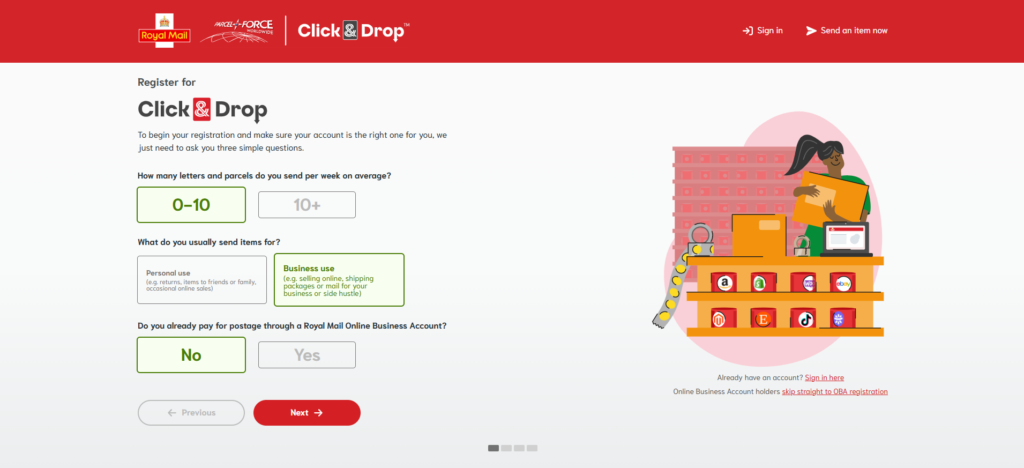
Step 1: Account Type Selection #
- Go to the Royal Mail Click & Drop website.
- Select 0-10 for the average number of items you send per week (unless you consistently send more).
- Select Business use (since you are shipping items sold on ShareHK).
- For the business account question, select No (unless you already have an established Online Business Account with Royal Mail).
- Click Next.
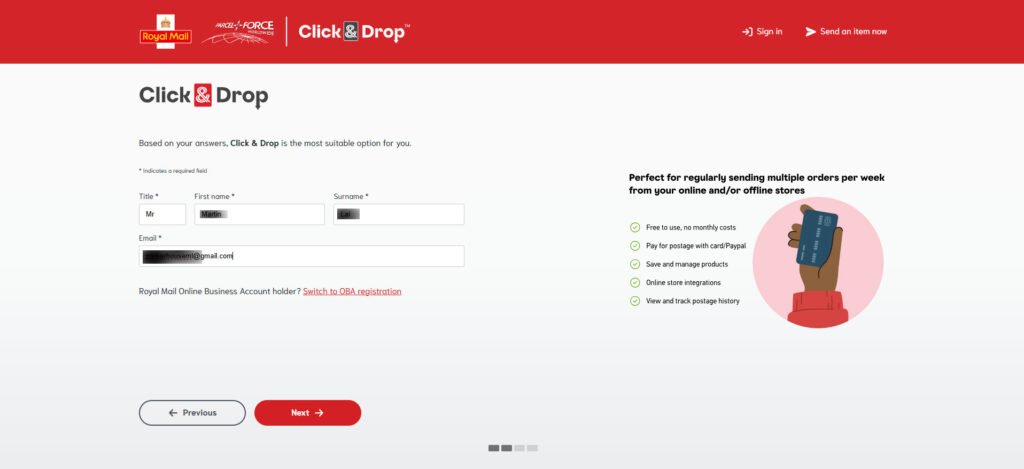
Step 2: Enter Contact Information #
- Enter your Title, First name, and Surname.
- Input your business or personal Email address (this will become your username).
- Click Next.
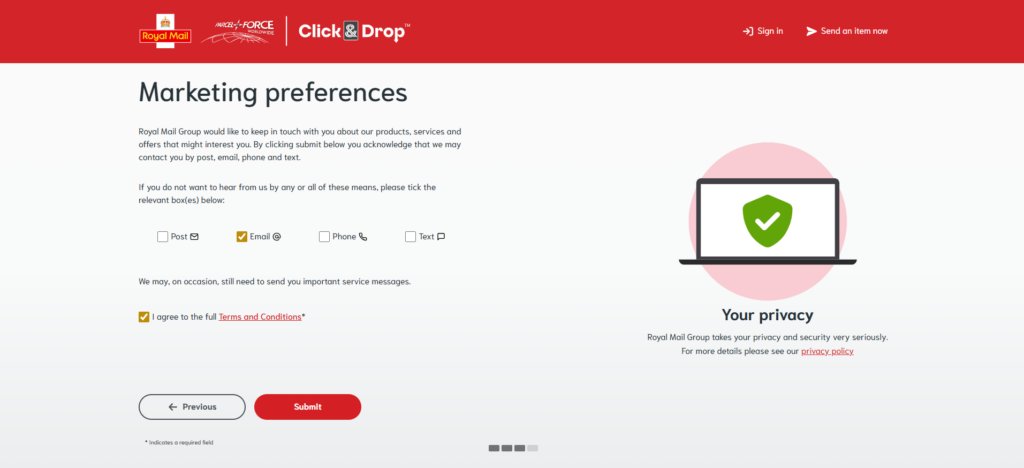
Step 3: Marketing Preferences & Terms #
- Review the marketing communication options and tick any boxes if you wish to opt out of marketing (or leave them blank based on your preference).
- Check the box to agree to the Terms and Conditions.
- Click Submit.
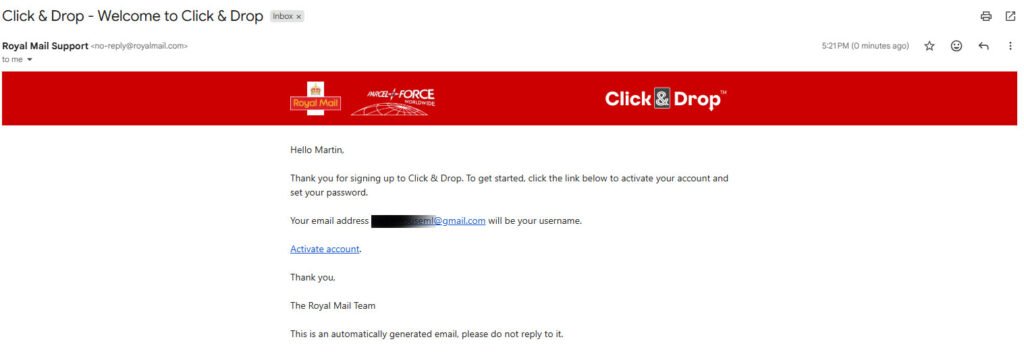
Step 4: Activate Your Account #
- Check your email inbox for an email from Royal Mail Support with the subject “Welcome to Click & Drop”.
- Click the Activate account link inside the email.
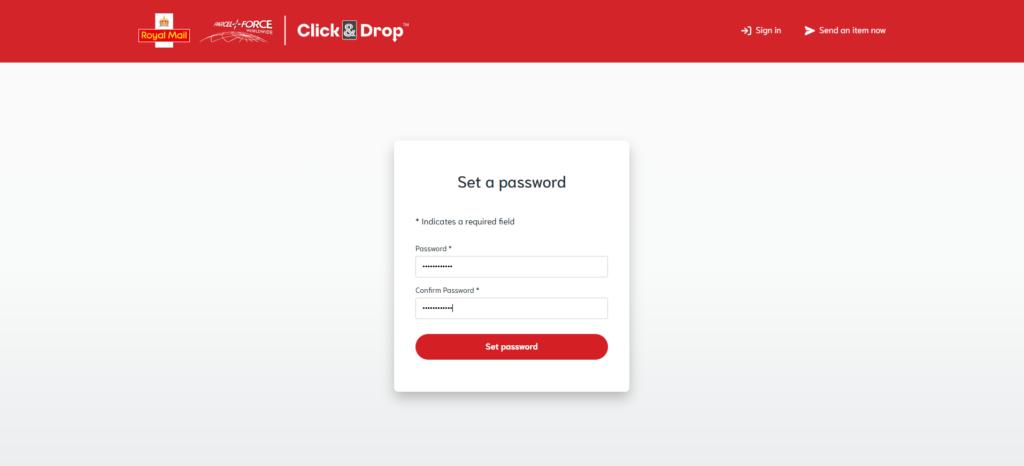
- On the page that opens, create and confirm a secure password, then click Set password.
Step 5: Set Your Default Sender Details #
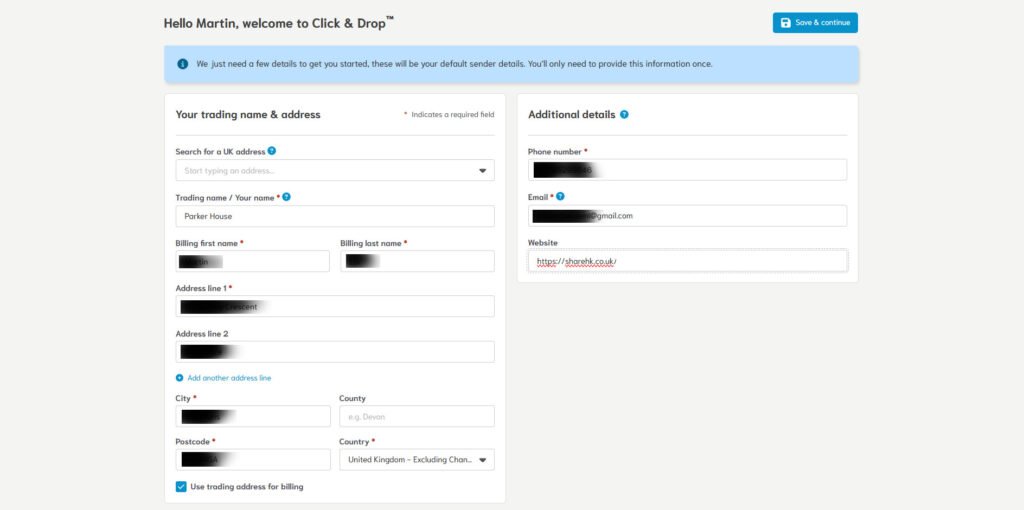
Before you can ship, Royal Mail needs your default business address and contact details. This only needs to be completed once.
- Trading name / Your name: Enter your shop or trading name (e.g., Parker House).
- Address details: Enter your full return address. This will print on the label so the parcel can be returned to you if it cannot be delivered.
- Additional details: Enter your phone number and email address.
- Ensure the “Use trading address for billing” box is checked if your payment card matches this address.
- Click Save & continue.
Part 2: Creating and Paying for a Shipping Label #
Once your account is ready, you can manually create a shipping label whenever you receive an order from ShareHK.
Step 6: Create a New Order #
- Log in to your Click & Drop dashboard.
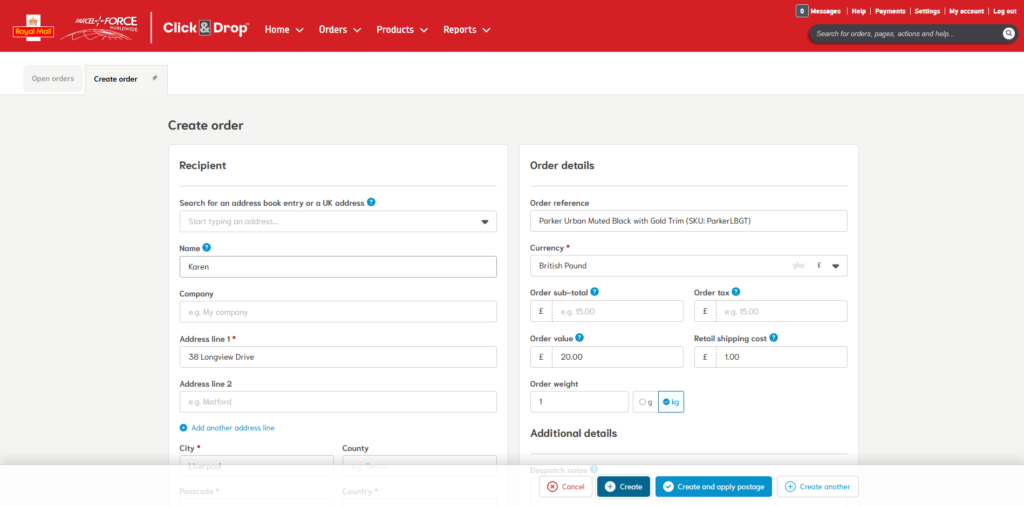
- Go to the top menu, hover over Orders, and select Create order.
- Fill in the Recipient details using the customer information from your ShareHK order page:
- Name: The customer’s name.
- Address line 1, City, Postcode: The customer’s shipping address.
- Fill in the Order details on the right side:
- Order reference: Type a short description or the product SKU to help you identify it later (e.g., Parker Urban Muted Black with Gold Trim).
- Order value: Enter the total amount the customer paid for the item (e.g., £20.00).
- Order weight: Enter the weight of your packaged item in kilograms (e.g., an item weighing 1,000 grams should be entered as 1 kg).
- Click the blue Create button at the bottom.
Step 7: Select Package Size and Shipping Service #
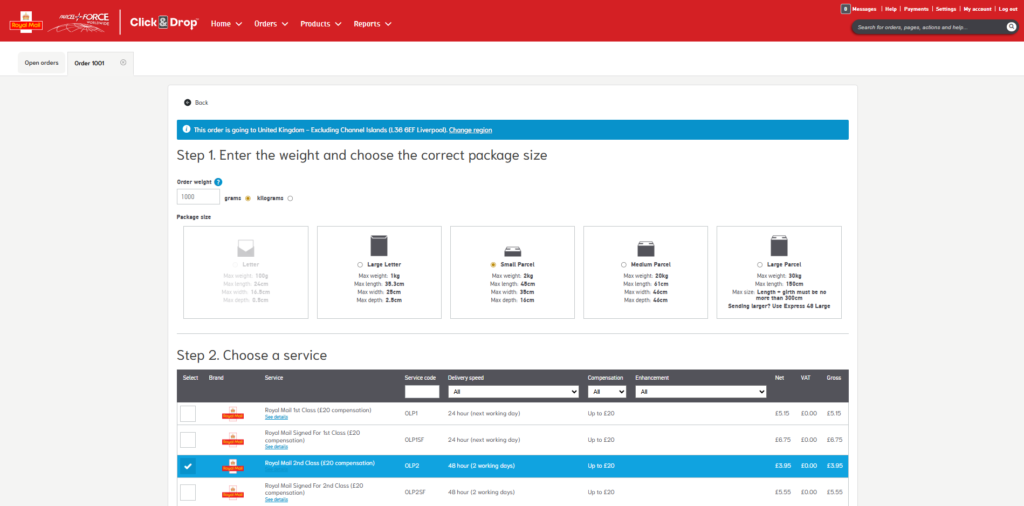
- Step 1 (Package Size): Select the correct box size for your parcel based on Royal Mail’s dimensions.
- Tip: Most standard handmade items packed in small boxes will fall under Small Parcel (Max weight: 2kg, Max size: 45cm x 35cm x 16cm).
- Step 2 (Choose a service): Scroll through the list of available delivery services and check the box next to your preferred method.
- For standard economical delivery, select Royal Mail 2nd Class or Tracked 48.
- If the customer paid for premium faster shipping, select Royal Mail 1st Class or Tracked 24.
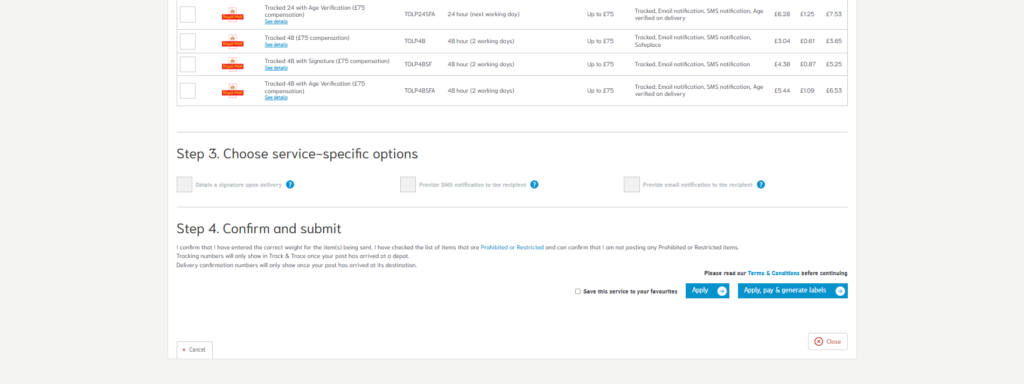
Step 8: Confirm, Pay, and Print #
- Scroll down to Step 3 (Choose service-specific options) if you want to add extras like signature upon delivery, though standard options are usually sufficient.
- Under Step 4 (Confirm and submit), check the box confirming you are not sending any prohibited or restricted items.
- Click the blue Apply, pay & generate labels button.
- Complete the payment via credit/debit card or PayPal.
- Download and print the PDF shipping label, secure it to your package, and drop it off at your local Post Office, Royal Mail Delivery Office, or parcel postbox!


