

Table of Contents
If you cannot log into your account because you have forgotten your password, you can easily request a secure reset link. Follow this guide to regain access to your account in a few simple steps.
Step-by-Step Password Reset Guide #
Step 1: Go to the Login Page #
- Locate and click the Account Icon (the person silhouette) in the top right corner of the screen.
Step 2: Click the Forgot Password Link #
- On the login screen, look directly below the password field and click the “Lost your password?” (or Forgot password) link.
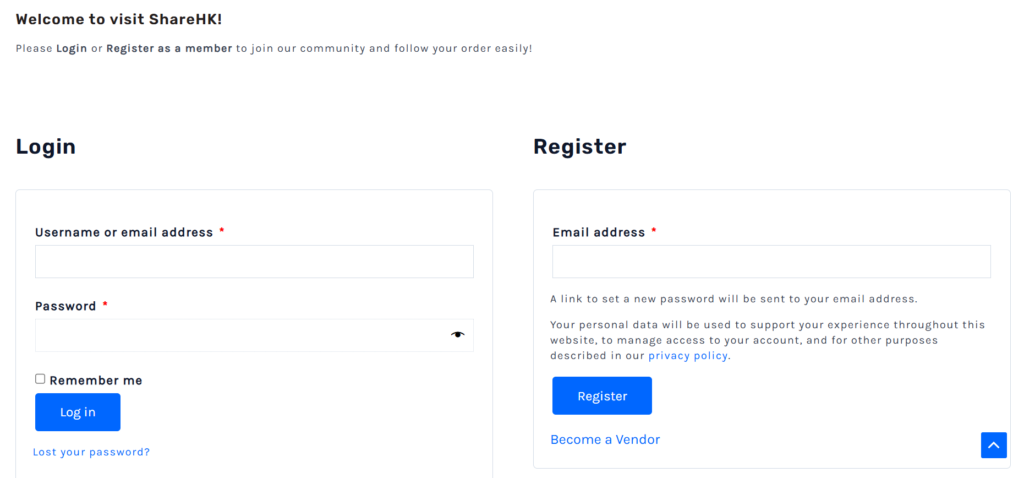
Step 3: Enter Your Email Address #
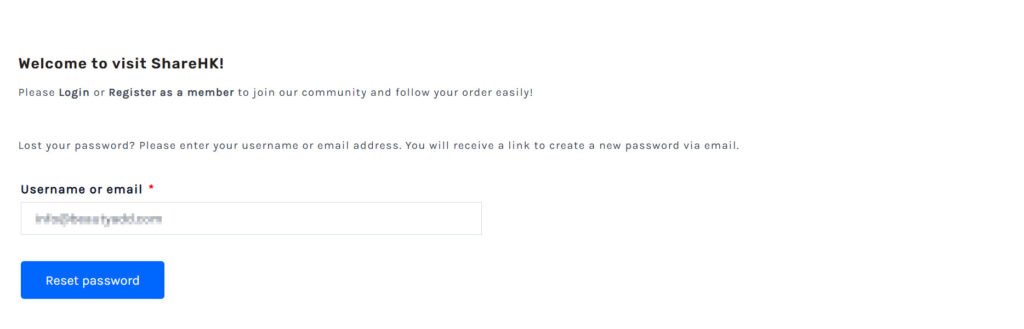
- You will be taken to the password reset request page.
- Type your registered email address into the field provided.
- Click the Reset password button.
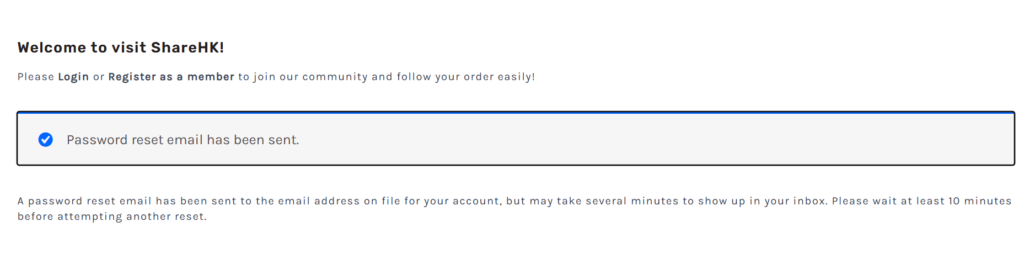
- A notification will appear on the screen confirming that a recovery email has been sent.
Step 4: Check Your Email Inbox #
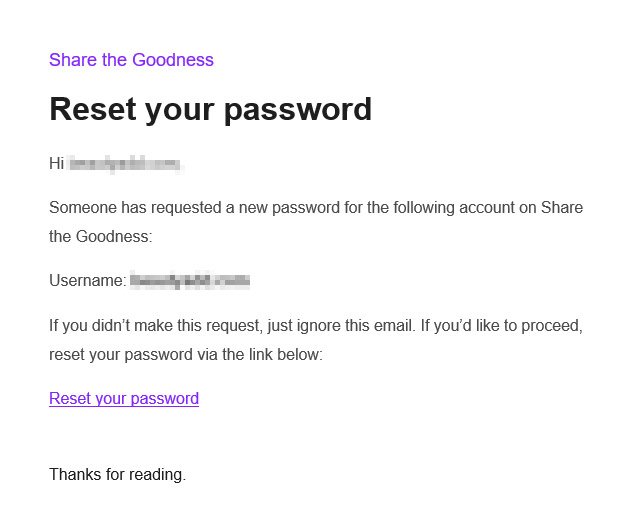
- Open your personal email account and look for a message from ShareHK with the subject line regarding your password reset request.
- Open the email and click the secure Password Reset Link inside.
- Tip: If you don’t see the email within a couple of minutes, please check your Spam or Junk mail folders.
Step 5: Choose a New Password #
- The link will securely redirect you back to a specialized page on ShareHK.co.uk.
- Enter your New password and confirm it in the secondary field.
- Click Save or Reset Password to finalize the change.
What’s Next? #
Your password has now been successfully updated! You can return to the main login page, enter your email along with your brand-new password, and securely access your Member Dashboard.


