
Congratulations on your sale! Once a customer places an order on ShareHK.co.uk, you need to process it through your vendor dashboard, arrange shipping, and provide the tracking information to the buyer.
Follow this step-by-step guide to complete the order fulfillment process smoothly.
Step 1: View Order Details #
When you receive an email notification for a new sale, your first step is to check the order specifics and delivery information.
- Log in to your ShareHK.co.uk Vendor Dashboard.
- From the left-hand side menu, click on Orders.
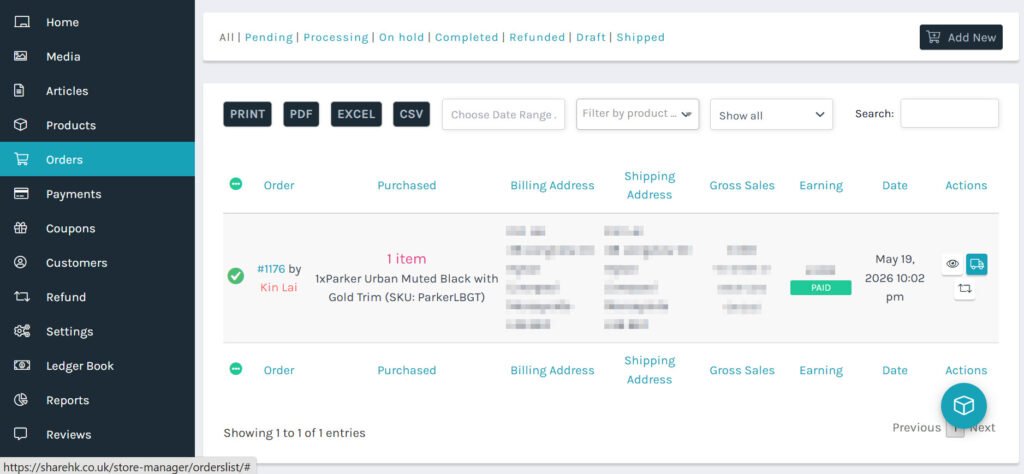
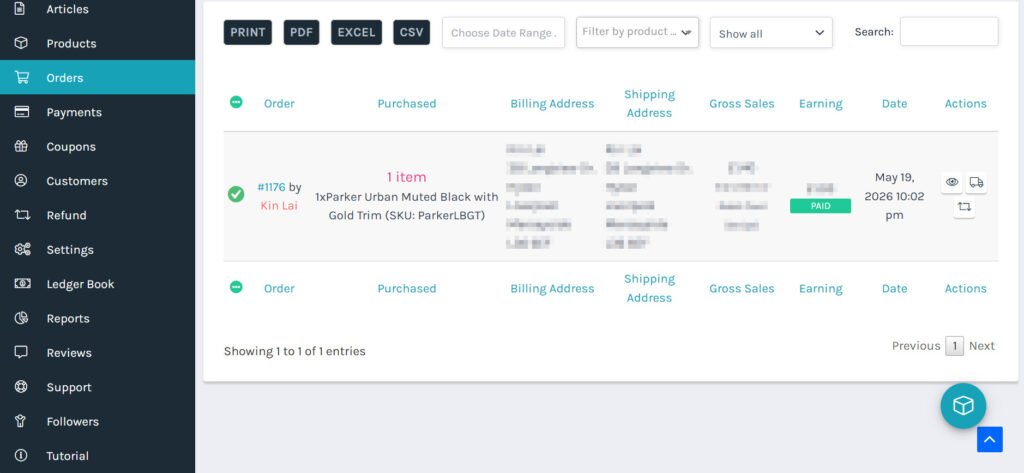
- In your orders main list, look at the active transactions. To view the full summary of a specific order, locate the Actions column on the far right and click the Eye icon (View).
- Carefully verify the following fields:
- Purchased Items: Check the product names, variations, and SKUs (e.g., Parker Urban Muted Black with Gold Trim).
- Shipping Address: Note the customer’s full name, street address, and postcode.
Step 2: Prepare Your Goods #
- Gather your stock based on the order details.
- Securely package your products. If you are shipping fragile items or handmade crafts, ensure they are safely padded to prevent damage during transit.
- Once fully packaged, measure and weigh your box (in grams or kilograms). You will need these figures to purchase your postage label next.
Step 3: Understand and Update Order Statuses #
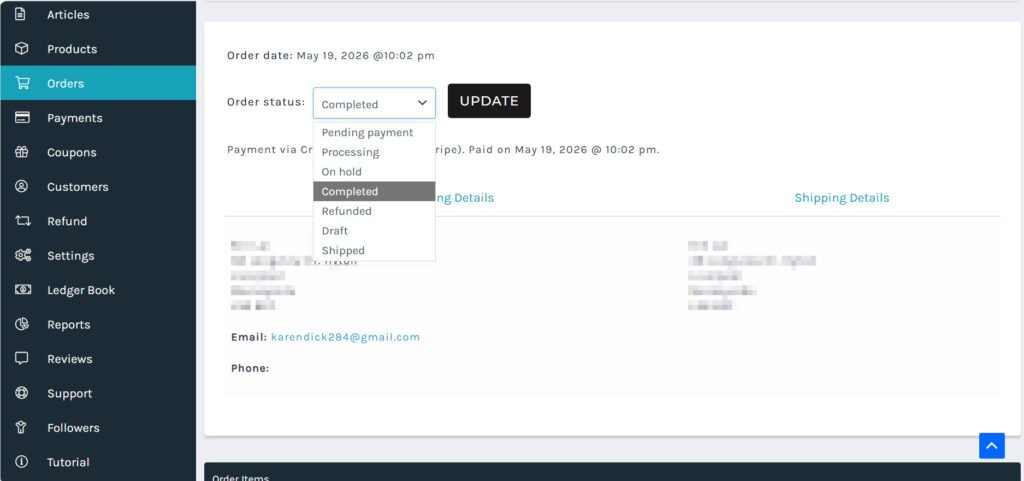
As you move through the fulfillment process, you can change the order status at the top of the individual order page to keep yourself organized and update the customer.
To change a status, click the Order status dropdown menu, select the appropriate phase, and click the black UPDATE button.
What Each Order Status Means: #
- Pending payment: The customer has initialized the checkout but the payment is not complete. Do not ship items under this status.
- Processing: The payment has been securely received. This is your green light to start preparing the goods and packing the order.
- On hold: Use this if you hit a snag (e.g., stock discrepancies or an invalid address) and need to pause fulfillment while contacting the customer.
- Completed: The transaction is fully finalized, and the item has been delivered successfully.
- Refunded: The order has been cancelled, and the funds have been returned to the buyer.
- Draft: A temporary or manual placeholder order that has not been submitted by a customer yet.
- Shipped: The package has officially been collected by or dropped off with the courier.
Step 4: Purchase Your Postage via Royal Mail #
Now that your parcel is ready, you need to buy and print your shipping label.
📦 Step-by-Step Royal Mail Guide: > Please refer directly to our dedicated companion tutorial: How to Ship Your ShareHK.co.uk Orders Using Royal Mail Click & Drop to learn how to register your account, select package sizes, and download your label.
Once you drop the parcel off at a local Post Office or Royal Mail parcel box, make sure to keep your receipt or check your Click & Drop account to find the Tracking Code.
Step 5: Input Tracking Details and Dispatch #
Once the item is physically shipped, you must add the tracking information to ShareHK so the platform can automatically notify the buyer.
- Go back to your main Orders dashboard.
- Look at the specific order row. In the Actions column on the right, click the green Ship icon (Delivery Truck Shape).
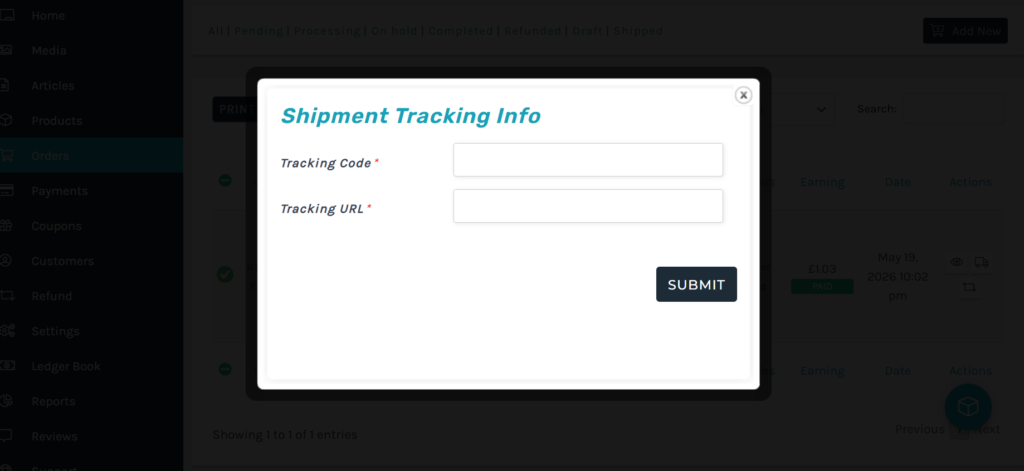
- A Shipment Tracking Info popup window will appear on your screen. Complete the two mandatory fields:
- Tracking Code: Type in the unique tracking reference code provided on your Royal Mail postage confirmation receipt.
- Tracking URL: Paste the official Royal Mail tracking link so customers can easily click it to check live updates:
https://www.royalmail.com/track-your-item
- Click the dark SUBMIT button inside the popup window.
- Finally, go into the order page, change your overall Order status to Shipped, and click UPDATE